Remote for Smart Samsung TV
BoostVisionHouse & Home
4.21.04K Reviews
- Version
- 1.7.7
- Installs
- 10.00M
- Age Rating
- Everyone
Screenshots
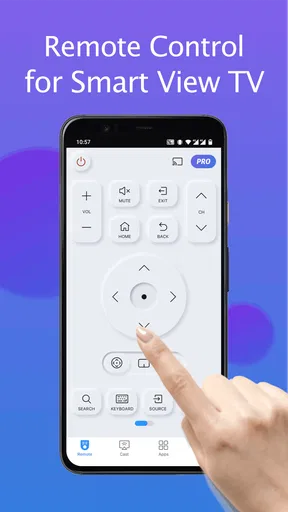
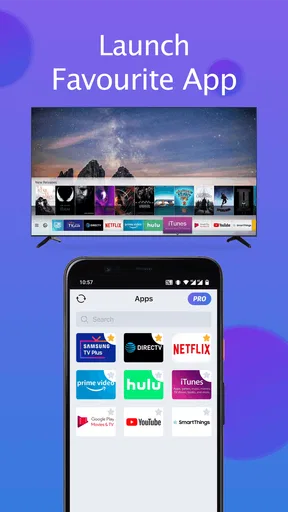
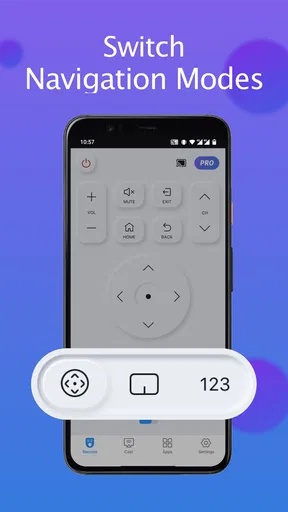
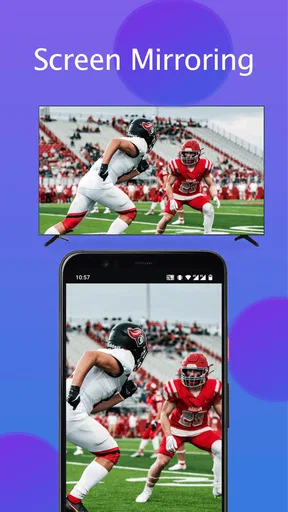
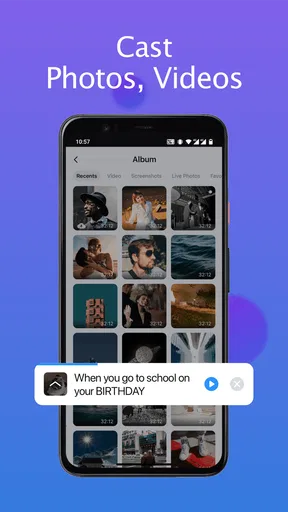
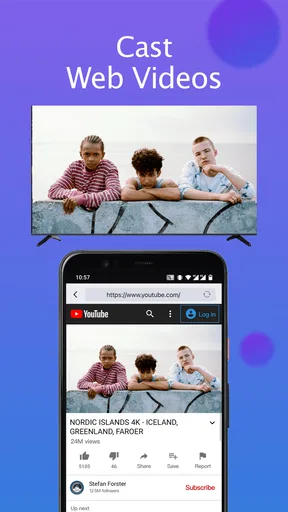
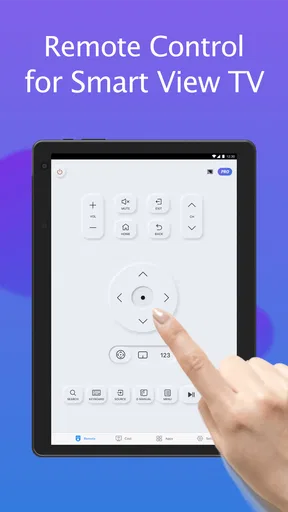
Our Review of Remote for Smart Samsung TV
 Analysis by Appyee
I judge a remote app less by the novelty of controlling a TV from a phone than by whether I still reach for it after the first few days. The Remote for Smart Samsung TV has a clear practical appeal: it gives me another way to manage a compatible Samsung television when the physical remote is out of reach. That convenience can become a small, lasting habit, but it depends on a steady connection and on being comfortable using a phone where a simple handheld remote may be quicker.
Useful when the remote is not where it should be
The best reason to keep a phone remote handy is not that it replaces every living-room routine. It is that it can rescue an ordinary moment: I sit down to watch something, the TV is on, and the remote has vanished between the cushions or been carried into another room. If my phone is already beside me, using it to adjust the volume or navigate is easier than getting up to search.
Typing is another situation where a phone can make more sense than a physical remote. When I am looking for a particular show, entering the title with a phone keyboard can be less tedious than moving across an on-screen alphabet one character at a time. That advantage is most noticeable for searches and sign-ins that require text; for a quick pause or volume change, the regular remote may still feel more immediate.
This app is aimed at Samsung Smart TV owners who want that extra control option. It is not a general-purpose controller for every television in the house, so I would first check that the TV is a supported Samsung model and that the phone and TV can use the same Wi-Fi network. The usual setup relies on being on that shared network, which makes it more suited to controlling a TV at home than to replacing a remote from elsewhere.
How it fits into everyday viewing
A realistic use for me would be settling in for a film, then using the phone keyboard to search rather than laboriously navigating letters with directional buttons. Later, if someone else has the physical remote or it has slipped out of sight, I can use the app for a simple adjustment without interrupting the evening. These are small conveniences, not a reason to change how the whole household watches TV, and that is precisely why the app is most convincing as a backup.
Compared with the remote included with a TV, a phone-based controller has a useful text-entry advantage but also asks for more preparation: the phone must be nearby, available, and connected to the right network. Compared with trying to use a TV’s own menus and controls, it can make navigation more comfortable, especially when text is involved. If I want a dedicated remote that anyone can grab without unlocking or handling a phone, the physical one remains the simpler choice.
Who is likely to keep using it?
I think it makes the most sense for someone who regularly misplaces the remote, searches for content often, or wants a convenient spare in a household with a compatible Samsung TV. It is less compelling for a viewer who always keeps the original remote close by, rarely types into the TV, or wants one phone app to control devices from several different brands. In those cases, the extra setup may not repay itself in daily convenience.
There is also a practical household trade-off: a phone is personal, while a TV remote is shared. If other people in the home expect instant access, relying on one person’s phone can add friction rather than remove it. I would treat the app as an option for the person holding the phone, not assume it automatically replaces the shared remote for everyone.
From first-week novelty to a lasting habit
The app comes from BoostVision and sits in the House & Home category. It is free to install, carries an Everyone age rating, and offers in-app purchases. Its average rating is 4.3 from around 120,000 ratings, with over 10 million installs. Those figures suggest that phone-based TV control has a broad audience, but they do not guarantee the same experience on every TV or home network.
Getting Started with Ease
The first thing I noticed about the Remote for Smart Samsung TV app is its straightforward setup. You just download it, connect it to the same Wi-Fi network as your TV, and boom—you’re in business! No more hunting for batteries or dealing with unresponsive buttons. The app interface is sleek and user-friendly, making the transition from physical remote to digital as smooth as possible.
For a smoother first attempt, I would make sure the TV is switched on and that the phone is connected to the home network intended for TV control. If the TV does not appear straight away, checking that both devices are on the same network is a sensible first step before trying again. This is a useful distinction from an infrared handset: a network-based phone remote depends on the home connection, so it is not the right fallback if the Wi-Fi is unavailable or the TV cannot join that network.
It is also worth trying the connection before relying on the app during a busy evening. That gives me time to confirm that the TV is recognized and to get used to the controls without making everyone wait while a film is about to start. The initial pairing is a small task, but doing it in advance is what turns the app from an emergency idea into a usable backup.
Features Galore
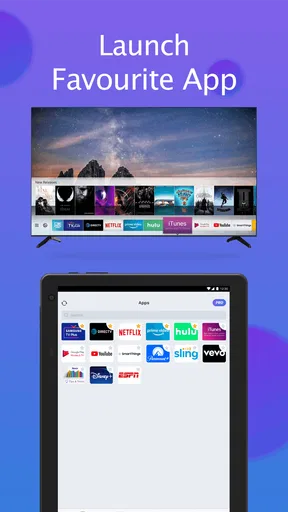
Once you’re in, the app offers a plethora of features that make controlling your TV a breeze. From volume control to switching between apps, everything is just a tap away. One feature I absolutely love is the ability to use your phone’s keyboard for searching. If you’ve ever tried typing a show name with a remote, you know how painfully slow it can be. This app solves that problem beautifully.
The keyboard is the feature I would reach for selectively rather than for every task. It is most valuable when a search involves a long title or several words; for a short command, opening the phone and moving into the app may take longer than a few presses on the original remote. A practical habit is to keep the physical remote for quick, shared actions and use the phone when text entry or a missing handset makes it genuinely easier.
Another neat feature is the touchpad control. It feels a lot like using a laptop trackpad, which is far more intuitive than pressing those little buttons on a traditional remote. Plus, you can customize the button layouts to fit your viewing habits, which is a nice touch.
Those controls also involve a preference trade-off. A touch surface can feel natural to someone used to navigating on a phone or laptop, but it may be less predictable than directional buttons for a viewer who wants to move one item at a time. I would try both styles during setup and settle on the one that gives me the fewest accidental selections. Button customization can make repeated actions easier to reach, but it is most useful after I know which controls I actually use; changing the layout before building a routine risks adding fiddling instead of saving time.
Performance and Connectivity
Now, you might be wondering about the app’s performance. I found it to be incredibly responsive, with minimal lag. The connection to the TV was stable, and I didn’t experience any dropouts or delays during my time using it. It’s definitely a reliable alternative to the physical remote.
In day-to-day use, connection quality is part of the experience rather than a background detail. If the phone has moved to another network, or the home connection is having trouble, the app may be less convenient than a remote that communicates directly with the TV. When a command does not go through, I would check the phone’s network first and confirm the TV is still reachable before assuming the controls themselves have failed. Keeping the original remote within reach remains sensible for moments when the network route is inconvenient.
However, it’s worth mentioning that the app functions best with newer Samsung TV models. If you’re rocking an older model, you might encounter a few hiccups, but for most users, it should work like a charm.
The app is at version 1.7.2 and requires Android 7.0 or later. That makes the phone’s software compatibility one more thing to check before building a habit around it. For a household using an older handset, it is worth confirming that the app can be installed there; if not, the included remote remains the dependable shared option, and replacing a working setup with a phone that cannot run the app would make little sense.
What can make the convenience wear off
The main source of fatigue is the extra step of using a phone for something a dedicated remote already does. A phone may be charging in another room, in someone else’s hands, or busy with another task. The app is most helpful when the handset is already nearby and the desired action benefits from its screen or keyboard. If I have to fetch it, unlock it, open the app, and reconnect just to change the volume once, the old remote is likely to win.
There is also a difference between a personal workaround and a household-wide replacement. A family member who has not set up the app may still need the physical controller, and passing a phone around can be less comfortable than handing over a remote. I would keep the original handset available rather than storing it away. That makes the app a useful second route without making everyone depend on a single phone.
The free installation lowers the barrier to trying it, while in-app purchases range from $1.99 to $36.99 per item. I would approach any purchase by first deciding whether the basic remote functions already solve my problem. If my main goal is a spare controller and occasional text entry, I would test those everyday tasks before paying for anything; a purchase is worthwhile only if it clearly improves a routine I expect to keep.
Month-to-month value and upkeep
Once the novelty has faded, the question is whether I still have a reason to open the app. For me, the strongest lasting reasons are repeated searches, a habit of watching with the phone beside me, or frequent moments when the physical remote is unavailable. If none of those describe my home, the app can still serve as a backup, but it may sit unused for long stretches. That is not necessarily a failure: a backup can be worthwhile precisely because it is there when needed.
Maintenance should be modest, but it is not entirely absent. I would keep the app available on a phone that meets its Android requirement, retain access to the same home Wi-Fi network, and occasionally check that the TV still appears when I need it. If the household network name or setup changes, testing the connection again before depending on the app is a practical precaution. These are ordinary checks, not reasons to keep monitoring it constantly.
For people who use iPhones, the key decision is whether the app is available for their device and whether it can connect to their Samsung TV in the way they expect. I would confirm compatibility on the relevant platform before planning around it. The core trade-off remains the same: a phone offers convenient typing and an alternative control surface, while a physical remote is independent of the phone’s battery, availability, and network connection.
Wrapping Up
In conclusion, the Remote for Smart Samsung TV app is a fantastic tool for anyone looking to streamline their TV-watching experience. It’s convenient, easy to use, and packed with features that make everyday viewing a little bit better. So, if you’re tired of fumbling around for your remote, give this app a try. It might just become your new best friend on movie nights.
My longer-term recommendation is a little more specific: I would try it if I own a compatible Samsung Smart TV, have a phone that can run it, and can see a recurring use for phone-based control. I would skip it as a supposed universal replacement if I want a controller that works without Wi-Fi, serves every brand in the house, or is equally accessible to everyone without setup. The best outcome is a complementary habit: keep the physical remote for quick shared control, and use the app when typing, convenience, or a misplaced handset makes the phone the better tool.
Privacy and Permissions
See what permissions an app requests and how it handles your data.
- Photos/Media/Files
- read the contents of your USB storage
- Storage
- read the contents of your USB storage
- Wi-Fi connection information
- view Wi-Fi connections
- Other
- view network connections, change network connectivity, allow Wi-Fi Multicast reception, connect and disconnect from Wi-Fi, full network access, control vibration, prevent device from sleeping
Verdict
Strengths of Remote for Smart Samsung TV
- Easy setup with Samsung TVs
- Intuitive user interface
- Customizable remote layout
- Supports multiple Samsung models
- Fast response time
Limitations of Remote for Smart Samsung TV
- Ads can be intrusive
- Limited features in free version
- Requires Wi-Fi connection
- Occasional connectivity issues
- No support for older TV models
Other Releases by BoostVision
View All
Remote for Fire TV & FireStick
Entertainment4.0

Universal TV Remote for All TV
Tools4.4

TV Remote control for All TV
Tools4.2

AirMirror: TV Cast & Mirror
Video Players & Editors4.3
Similar Picks in This Category
View All
Universal TV Remote Control
CodeMatics Media Solutions3.9

AlfredCamera Home Security app
Alfred Systems Inc.4.7

Planner 5D: AI Home Design
Planner 5D4.5

Universal Tv Remote-Cast to TV
One Music Player4.1

Zillow: Homes for Sale & Rent
Zillow Group4.8

99acres Buy/Rent/Sell Property
infoedge.com4.3
Frequently Asked Questions
How do I connect the Remote for Smart Samsung TV app to my television?
To connect the Remote for Smart Samsung TV app to your television, ensure that both your smartphone and the TV are connected to the same Wi-Fi network. Open the app, and it will automatically search for available Samsung TVs. Select your TV from the list, and follow any on-screen instructions to complete the pairing process.
Is the Remote for Smart Samsung TV app compatible with all Samsung TV models?
The app is designed to work with most Samsung Smart TVs, particularly those manufactured in recent years. However, compatibility may vary depending on the model and the software version of your TV. It's recommended to check the app's description for a list of supported models or contact customer support for more information.
What features does the Remote for Smart Samsung TV app offer?
The app offers a range of features including standard remote functions like volume control and channel navigation. Additionally, it provides smart features such as accessing apps, using voice commands, and a keyboard for easier text input. Some versions might include gesture controls and quick access to streaming services as well.
Is there a cost associated with using the Remote for Smart Samsung TV app?
While the basic version of the Remote for Smart Samsung TV app is typically free, there may be in-app purchases or a premium version available that offers additional features. These could include an ad-free experience, enhanced control options, or quicker app updates. Check the app store for detailed pricing information.
What should I do if the Remote for Smart Samsung TV app is not working properly?
If the app is not functioning correctly, first ensure that your phone and TV are on the same Wi-Fi network. Restart both devices and try reconnecting. If issues persist, check for updates for both the app and your TV's firmware. If problems continue, consider contacting the app's customer support for further assistance.
